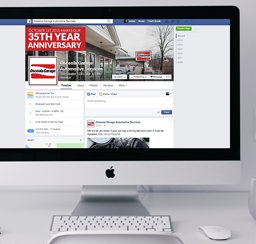
There is no super secret on how to succeed on Facebook: it’s all about hard work. The platform was created around personal relationships, and that’s what you have to focus on. There are many strategies you can use to connect with your fans, but we are going to start simple. Right after you finish setting up your business page, Facebook will show you 4 ways to get fans: Invite your friends, tell your fans, post status updates and promote this page on your website.

1. Invite your friends: In this option you will be able to invite your friends from your personal account to join your page. Just click on INVITE FRIENDS, and choose who you want to invite. Check the box next to the person’s name, and then click on SUBMIT. Facebook will automatically invite them to like your page.
2. Tell your fans: That’s the most effective way to get fans, but you’ll need to have an email database or an email account to link to Facebook. To do it, click on IMPORT CONTACTS. You will find 2 options there—upload a contact file or find your web email contacts. On upload contacts, you will need to have a file with your contacts’ email addresses. Facebook supports pretty much any file format. If you don’t know how to turn your contacts into a file, click on HOW TO CREATE A CONTACT FILE and Facebook will give you specific instructions on how to do it. In case your contacts are on an email account, just provide your email address and password and click on FIND CONTACTS. Facebook will automatically try to find their profiles. In this step you can upload a maximum of 5000 contacts. After you upload your contacts (either way) you’ll be able to choose the contacts you want to send the invitation to. You can send it to all of them as well. After you choose, click on PREVIEW INVITATION—you are going to be able to see what your invitation looks like, but you can’t edit it. Click on SEND.
3. Post status updates: Here is where you can share stories, photos, videos, and questions—pretty much anything you want—with your fans. I  recommend you start with posts about your place (specials, events, etc), and later on you can share other types of content to generate interaction and engagement. Posts don’t need to always be related to your business, but try to stay on subjects that will remind your fans of you.
4. Promote this page on your website: This topic is about the little “Like” box you can add on your website. To do that though, you are going to need a little knowledge on html, or you can just ask whoever built your page to add the box code on it. When you click on ADD LIKE BOX, Facebook will take you to its developer website and show you how to add the code to your website.
Once you get 25 fans, Facebook will give you the chance of choosing a short link for your page. The link is usually formed by the website address and your business name (ex: www.facebook.com/YourBizNameHere). Use the short link on posters, flyers and anywhere you can, and ask your customers to “like you on Facebook.” As you get more fans, the greater chance you have of increasing your business
As you start using the Facebook tips, the platform will show you new ones. There are tons of other ways to promote your page and connect with your fans (tabs, apps, shops, ads, etc.) but the most important thing is to keep it simple and show your fans that you care about them. If they comment on something or ask a question, be quick on answering. If they make a complaint, explain your reasons and offer compensation. Interacting with fans on Facebook is nothing different from interacting with them at your place—it’s just a different environment. And remember: Facebook is about bonding with your clients and establishing a personal relationship, and not all about sales. Don’t load your page with advertising!!! Give your fans something to talk about, some room for interaction and some useful content—if they like it, they will naturally do the word-of-mouth marketing for you.